AI 3D Modeling in Blender: Beginner's Guide

Learn how AI is transforming 3D modeling in Blender. From AI-assisted retopology to procedural generation — discover workflows that accelerate your modeling process while maintaining clean topology.

Updated: 2026-01-0510 min read
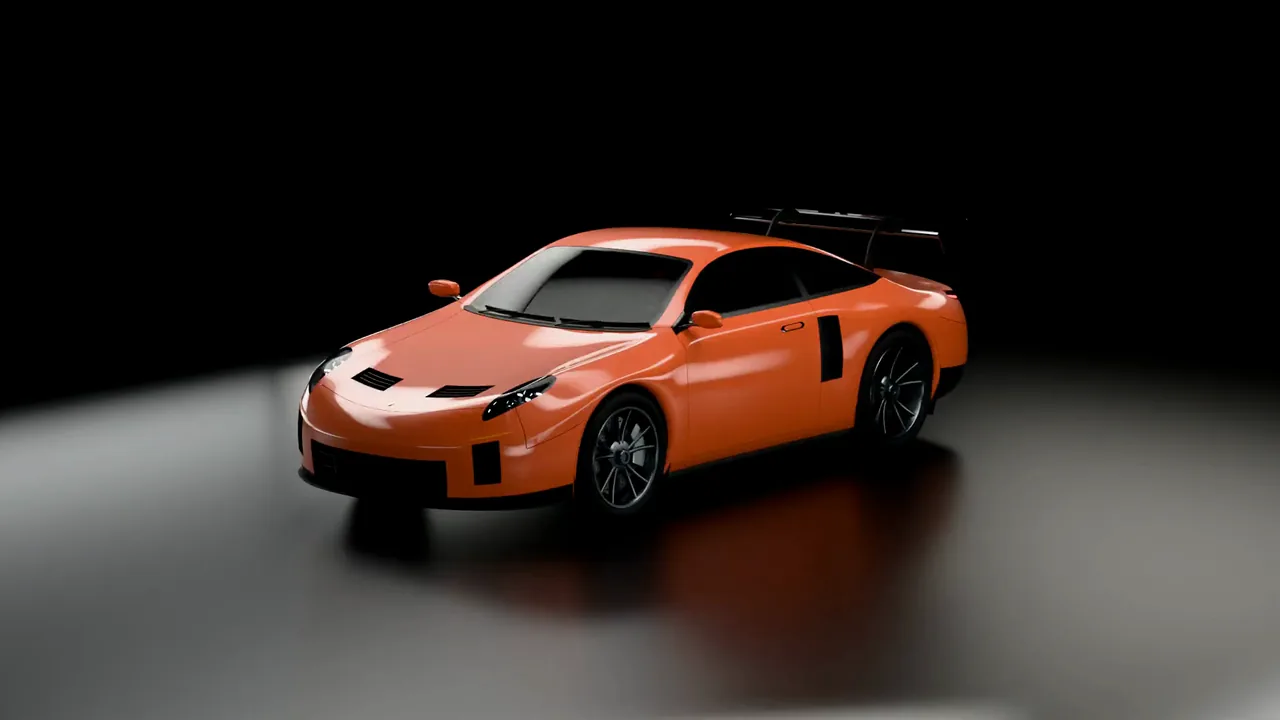
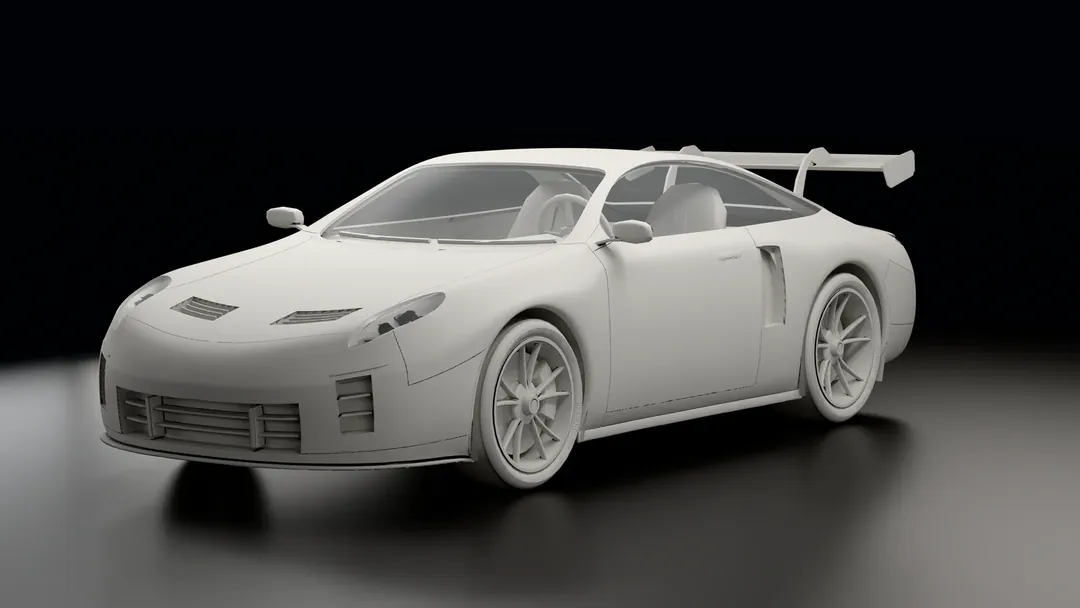
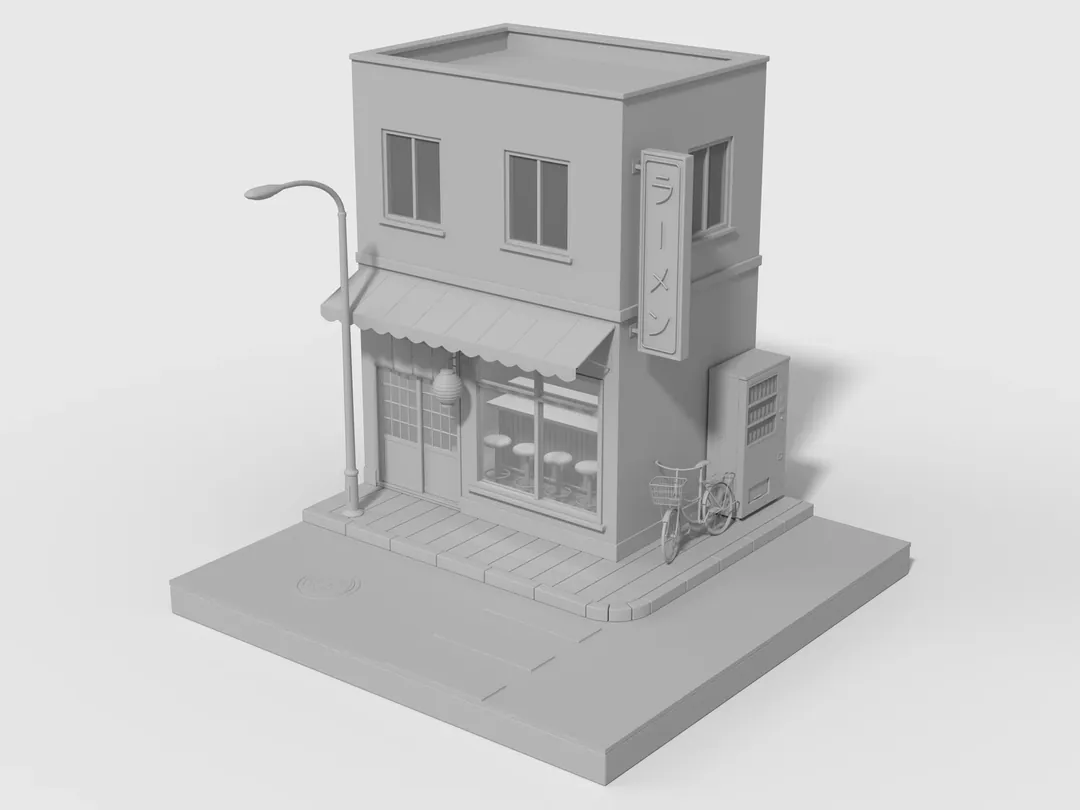
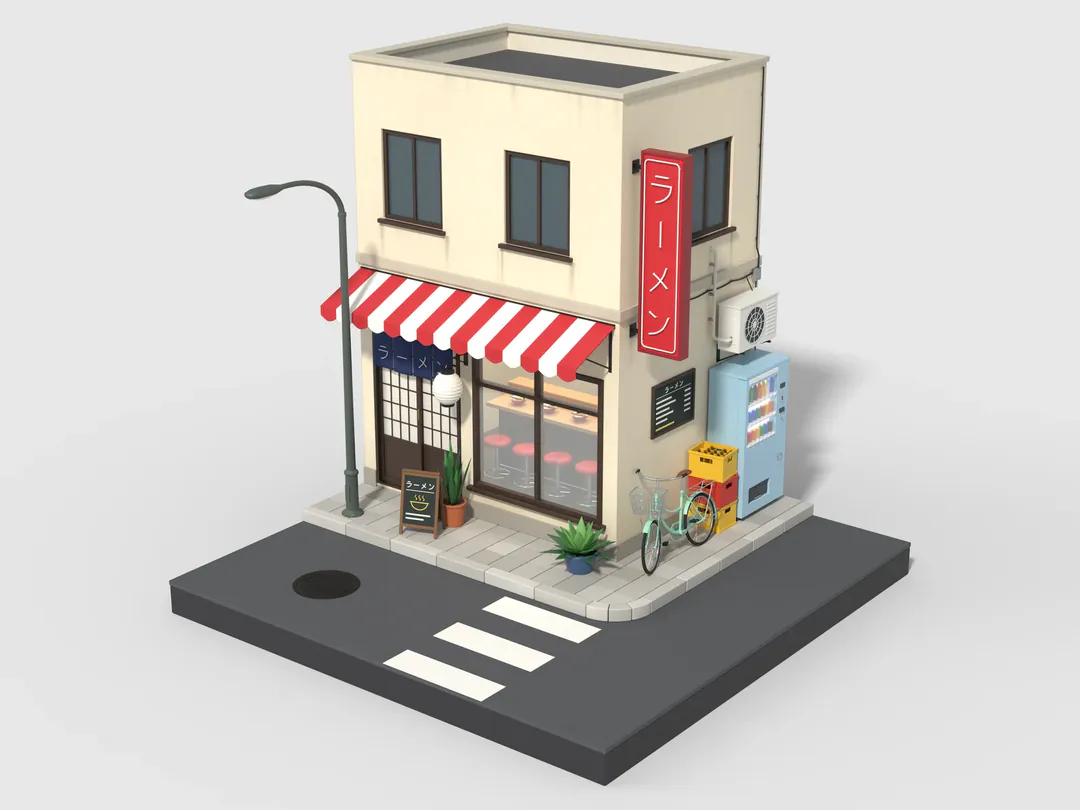
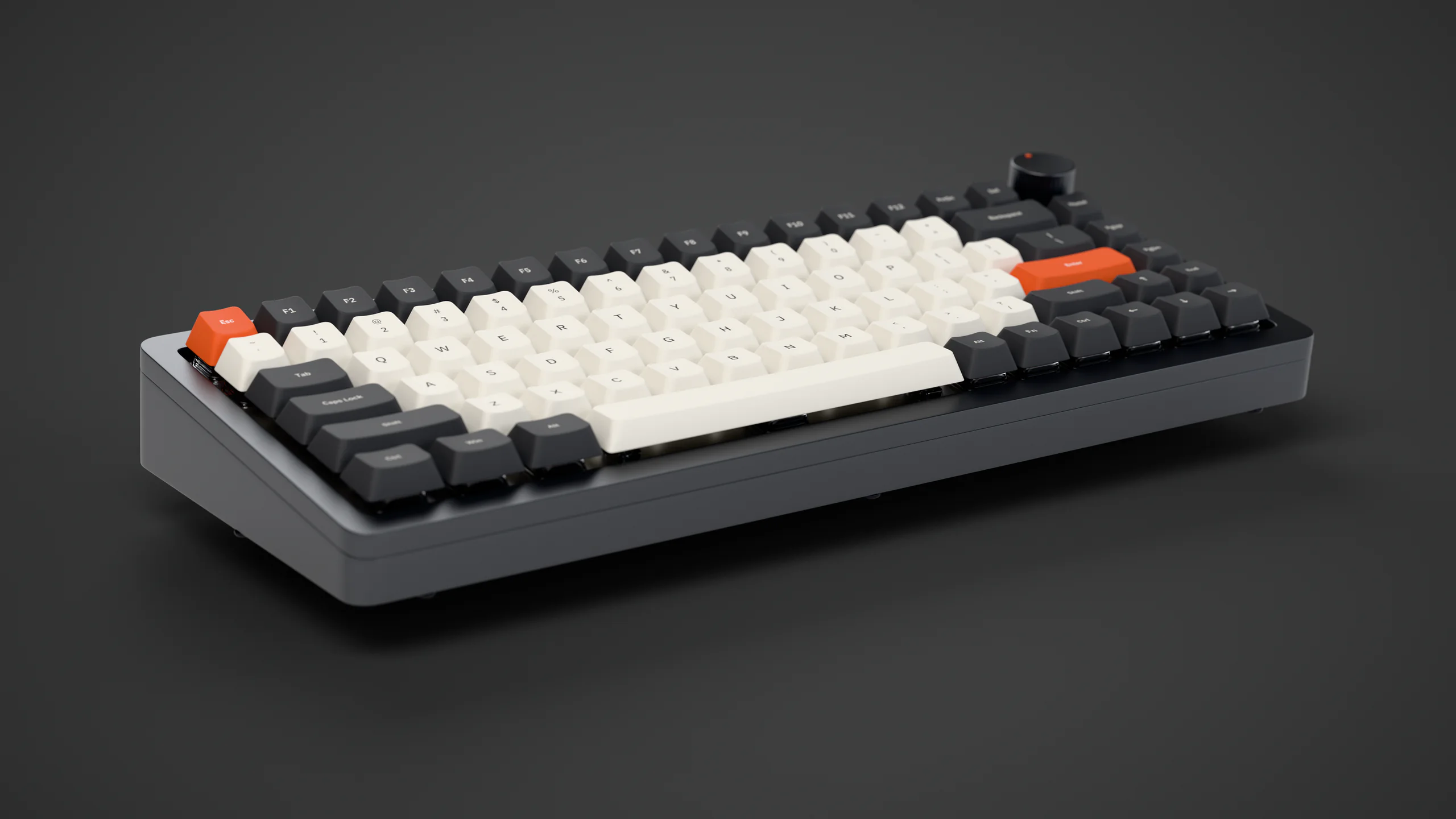
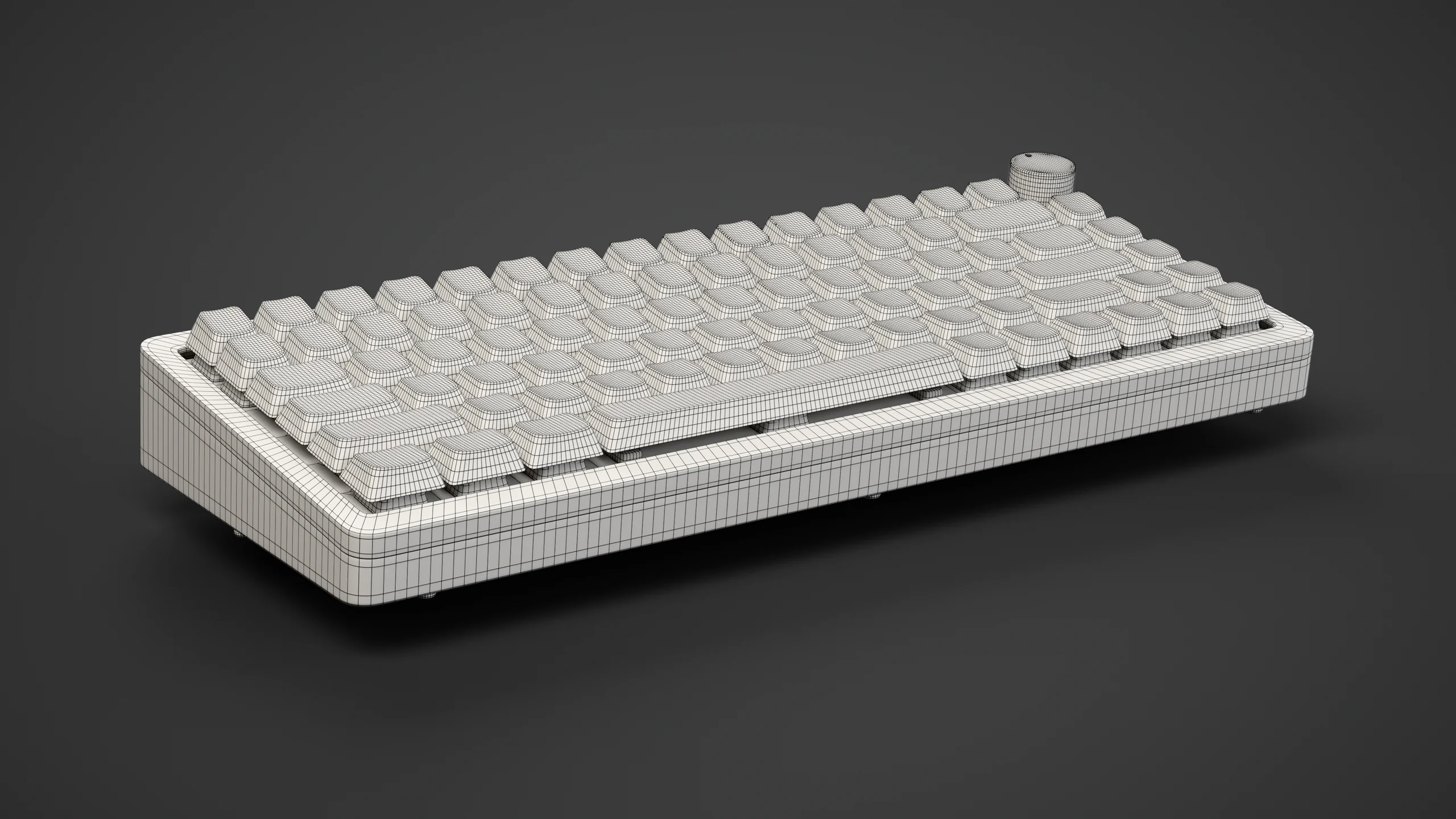
AI modeling in Blender demonstration

TL;DR — AI Modeling in Blender

AI modeling in Blender uses intelligent tools to assist with or automate parts of the modeling process. While AI can't replace skilled modelers, it dramatically speeds up tasks like retopology, procedural generation, and initial mesh creation. 3D-Agent brings AI modeling directly into Blender with clean topology output — no messy wireframes.

Best for
Complex topology & rapid prototyping
Top Tool
3D-Agent (clean topology output)
Time Savings
50-70% on modeling tasks
Learning Curve
Low (describe what you want)

What is AI Modeling in Blender?

AI modeling in Blender refers to using artificial intelligence to assist with or automate 3D modeling tasks. Instead of manually sculpting every polygon, AI can generate base meshes, optimize topology, create procedural variations, or suggest geometry based on descriptions.

This doesn't mean AI replaces 3D artists — it means artists can work faster. AI handles the tedious parts (initial shapes, retopology, repetitive geometry) while you focus on creative decisions and final polish. The best AI modeling tools integrate directly into Blender, like 3D-Agent, which uses native Blender operations to ensure clean, production-ready topology.

Whether you're a game developer needing rapid asset creation, an architect visualizing concepts, or a hobbyist exploring 3D art, AI modeling tools can dramatically reduce the time from concept to finished model.

New to AI in Blender? Start with our complete Blender AI guide for an overview of everything AI can do in your workflow.

AI Modeling Approaches

There are several approaches to AI-powered modeling in Blender, each suited to different workflows and goals.

AI-Assisted Retopology

Automatically convert high-poly sculpts into clean, animation-ready meshes with optimal edge flow.

How It Works

AI analyzes your mesh structure and generates a new topology with proper edge loops, quad-based geometry, and optimized polygon count. Tools can detect areas needing denser geometry (faces, hands) versus simpler areas.

Best For

  • Converting sculpts to game-ready meshes
  • Cleaning up photogrammetry scans
  • Optimizing high-poly models
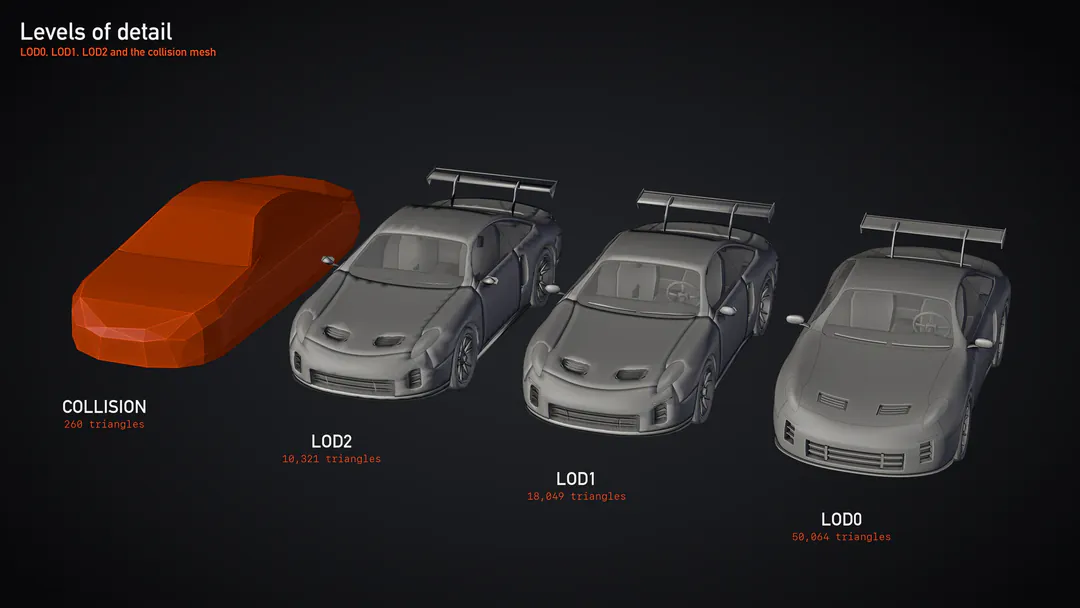
  • Creating LOD (level of detail) versions

Tools

QuadRemesherInstantMeshes3D-Agent

AI-Enhanced Procedural Generation

Combine Blender's Geometry Nodes with AI to create intelligent procedural systems.

How It Works

AI suggests or generates Geometry Nodes setups that create complex models procedurally. You can describe what you want ("scattered rocks with moss") and AI builds the node graph to achieve it.

Best For

  • Environment assets (rocks, trees, debris)
  • Architectural elements
  • Pattern-based objects
  • Variations and instances

Tools

3D-AgentBlender Geometry NodesCustom AI Scripts

Text-to-Mesh Generation

Describe what you want in plain language and AI generates the 3D geometry directly in Blender.

How It Works

Tools like 3D-Agent understand natural language descriptions and translate them into Blender modeling operations. Unlike external generators that create messy meshes, 3D-Agent uses Blender's native tools for clean topology.

Best For

  • Rapid prototyping and concept exploration
  • Creating base meshes for refinement
  • Non-modelers who need 3D assets
  • Quick iterations on design ideas

Tools

3D-AgentGeometry Nodes + AI

AI Sculpting Assistants

AI tools that assist with digital sculpting by suggesting forms, generating details, or automating repetitive sculpting tasks.

How It Works

AI analyzes reference images or descriptions to suggest brush strokes, generate surface details, or complete partial sculpts. Some tools can auto-generate skin pores, fabric wrinkles, or surface noise.

Best For

  • Adding surface details quickly
  • Generating organic forms
  • Completing partial sculpts
  • Reference-based modeling

Tools

3D-AgentAI Sculpt PluginsBlender Sculpt Mode + AI

AI Modeling Workflow with 3D-Agent

Here's how to use AI for modeling in Blender with 3D-Agent. This workflow leverages native Blender integration for seamless, production-ready results.

1

Set Up Your Scene

Open Blender with 3D-Agent connected via MCP. You can start from an empty scene or with existing geometry you want to enhance.

Tip: 3D-Agent works with your existing Blender setup — no special configuration needed.

2

Describe Your Model

Tell your AI assistant what you want to create: "Model a medieval wooden barrel" or "Create a low-poly tree with stylized leaves." Be specific about style, detail level, and purpose.

Tip: Include context like "game-ready" or "high-poly sculpt" to guide the AI.

3

Generate and Review

3D-Agent generates the model using Blender's native modeling tools. Review the result in your viewport — the AI creates clean topology suitable for animation and export.

Tip: Unlike external AI generators, 3D-Agent output has proper edge flow and quad topology.

4

Iterate and Refine

Ask for modifications: "Make it taller," "Add more detail to the rim," or "Simplify the geometry." 3D-Agent adjusts the model while maintaining clean topology.

Tip: Iteration is fast — try multiple variations before committing to one direction.

5

Finalize and Export

Once satisfied, manually polish any details. Export directly from Blender to your target format (FBX, GLB, OBJ, USDZ). The clean topology ensures compatibility everywhere.

Tip: AI handles 70-80% of the work — your artistry shines in the final 20%.

Need help setting up 3D-Agent? See our plugin installation guide →

AI Modeling vs Manual Modeling

Understanding when to use AI modeling vs traditional manual workflows.

Speed (Initial Creation)AI
AIMinutes
ManualHours to Days
Creative ControlManual
AIDescription-based
ManualFull Control
Learning CurveAI
AILow (plain English)
ManualHigh (years to master)
Topology QualityTie
AIClean (with 3D-Agent)
ManualDepends on skill
Iteration SpeedAI
AIVery Fast
ManualSlow
Unique DetailManual
AIGood
ManualExcellent
Production ReadinessTie
AIReady (3D-Agent)
ManualReady
Best Use CaseTie
AIPrototypes & Base Meshes
ManualHero Assets & Final Polish

Frequently Asked Questions

What is AI modeling in Blender?

AI modeling in Blender refers to using artificial intelligence tools to assist with 3D modeling tasks. This includes generating meshes from text descriptions, automatic retopology, procedural generation, and AI-assisted sculpting. Tools like 3D-Agent integrate directly into Blender for seamless workflows.

Can AI create production-ready 3D models?

Yes, with the right tools. 3D-Agent creates models with clean topology using Blender's native operations, making them suitable for animation, games, and production. Unlike web-based AI generators that often produce messy meshes, 3D-Agent output is ready for professional use.

What is the best AI modeling tool for Blender?

3D-Agent is the best AI modeling tool for Blender because it works natively inside Blender and produces clean topology. Unlike external tools that require export/import workflows, 3D-Agent generates models directly in your scene using Blender's own modeling operations.

Does AI modeling require a powerful computer?

3D-Agent runs AI computations on remote servers, so any computer that runs Blender can use it. You only need a stable internet connection. Local AI tools like some retopology solutions may require more powerful hardware.

Can AI do retopology in Blender?

Yes! AI-assisted retopology tools can convert high-poly sculpts into clean, animation-ready meshes automatically. 3D-Agent can create models with optimal topology from the start, and tools like QuadRemesher specialize in retopology tasks.

How does AI modeling compare to manual modeling?

AI modeling is faster for initial creation and iteration but offers less precise control than manual modeling. Most professionals use both: AI for rapid prototyping and base meshes, manual modeling for hero assets and final refinement. The combination delivers the best results.

Is 3D-Agent free for AI modeling?

3D-Agent offers a free tier that includes AI modeling capabilities. Pro plans provide more generations and priority features. You can try AI modeling in Blender without any upfront cost.

For more AI capabilities, explore our complete Blender AI guide.

Start AI Modeling in Blender Today

3D-Agent brings AI modeling directly into Blender. No messy topology, no export/import hassle — just describe what you want and create production-ready models.

  • Native Blender integration
  • Clean, animation-ready topology
  • Plain English descriptions
  • 5-minute setup

Get Started Free

Try 3D-Agent with no credit card required. Start AI modeling in Blender today.