I Made a Realistic AI Short Film From Grey Shapes in Blender
 Hugo Caumo10 min read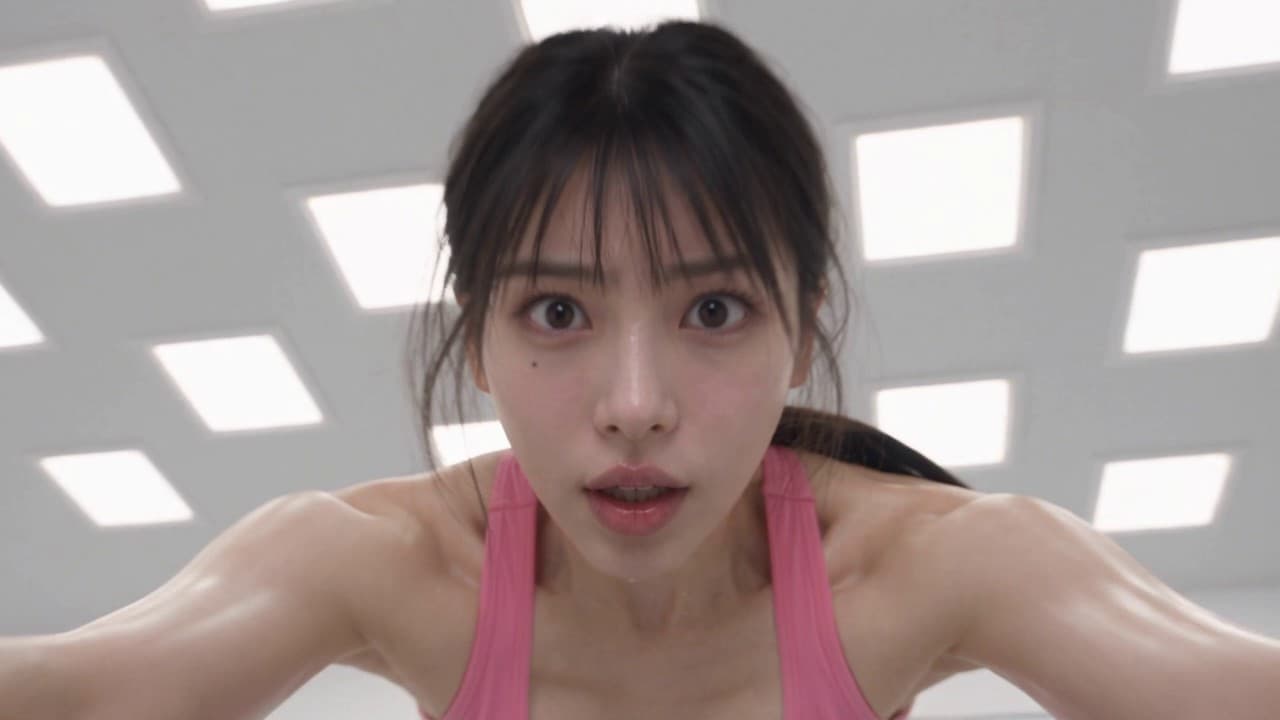
No camera. No actors. Nothing in this clip was filmed.
The loop above is Pushups for Love, an 18-second AI short film. Every shot started as a few simple grey shapes in Blender, and I turned them into realistic video with AI, all inside 3D-Agent. Here's how a few simple grey shapes and one camera move in Blender turn into this.
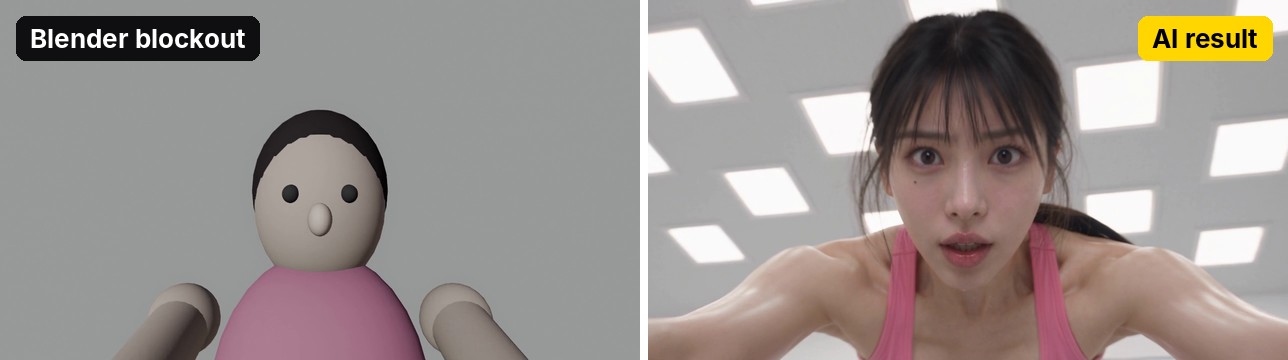
This post is the written version of my tutorial. It walks through the whole workflow in four steps: the blockout, the camera trick, the pictures I gave the model (and why my first faces looked like plastic), and how to hide the cut in the loop. You also get every prompt I used, folded under each step: templates with the words to swap highlighted, plus the real prompts from the film. Open one to read it or copy it.
The AI short film: Pushups for Love
A girl is doing pushups in a boutique gym when her crush walks in. She gets up and walks shyly up behind him while he admires himself in the mirror, and we see how she sees herself in that mirror. The camera ends on her eyes. They're the same eyes the film opens on, so it loops forever with no visible cut.
It's a comedy made of four shots, each 4 to 6 seconds long:
- The pushups. The camera is on the floor. It starts on her eyes, then moves back while she does three pushups.
- The crush. He walks in through the door and slides a hand through his hair. The camera moves in to his face in the mirror.
- The walk. A reverse, wide angle from the other side of the room. She walks up behind him while he does curls.
- The mirror. The camera goes up with her hand and zooms into her eyes in the mirror. This is the loop point.
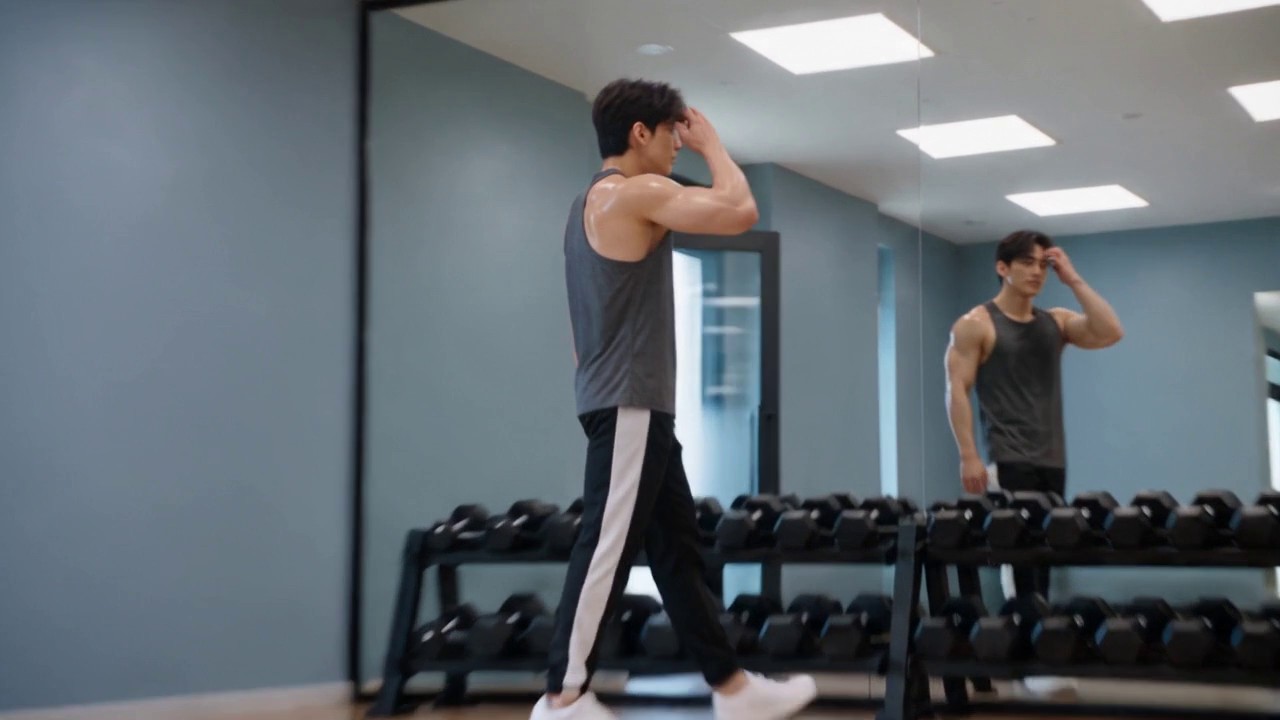
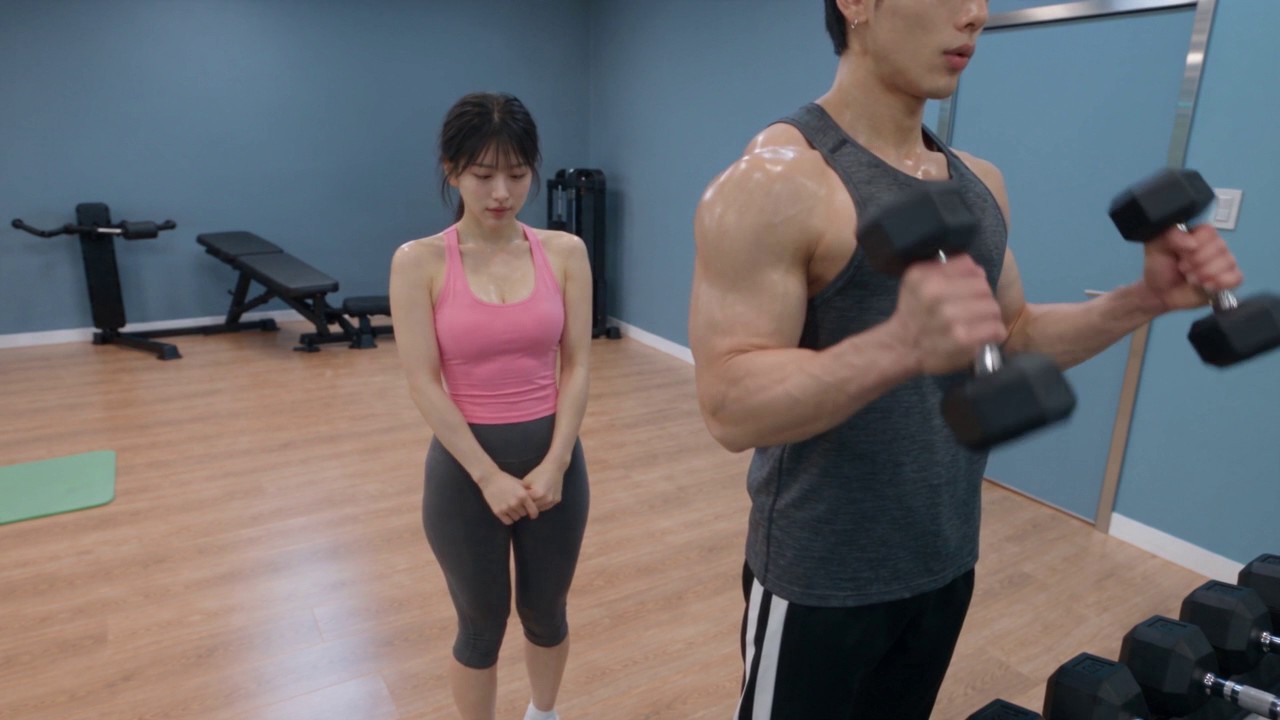
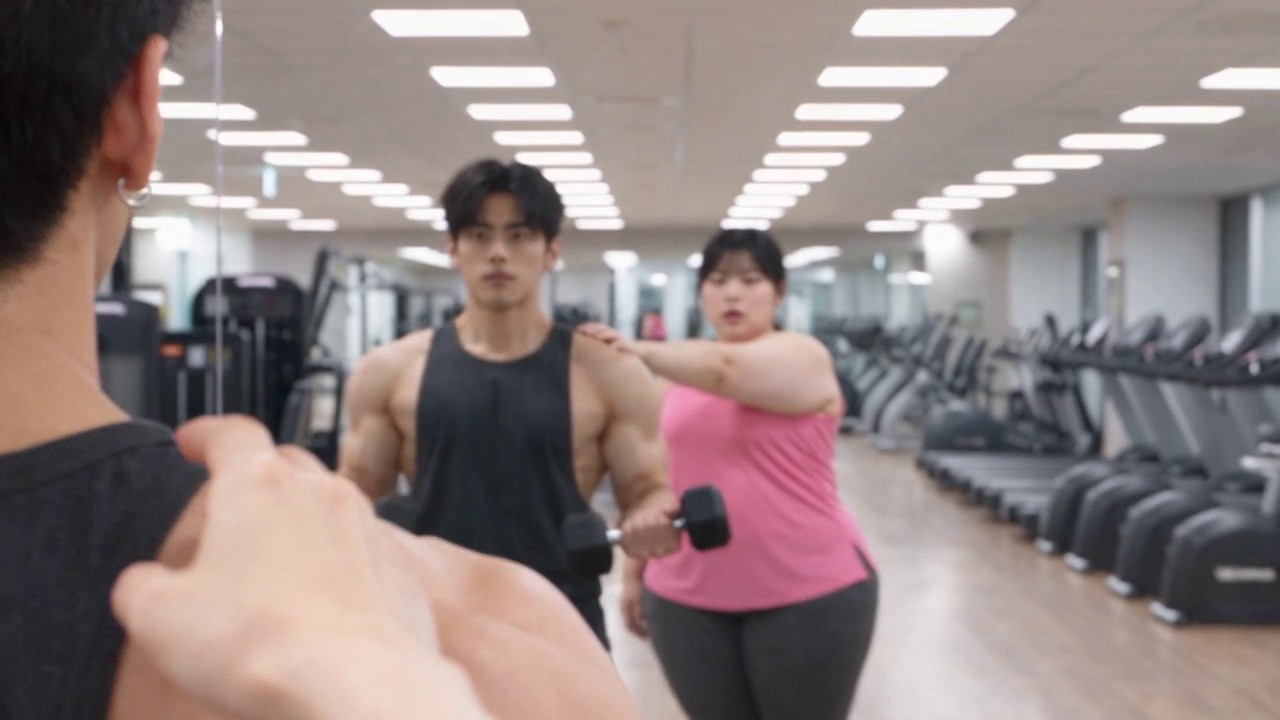
How to make an AI movie in 4 steps
If you've tried to make a movie with AI, or any kind of AI animation, you've probably hit two walls. The AI ignores the camera move you asked for. And the faces look plastic.
This workflow answers both. You're the director: you block the scene in 3D, then let the AI paint it.
- Block out the scene in Blender
Simple grey shapes lock where everyone stands and how they move.
- Make the AI follow your camera
Animate the camera in the blockout and use it as the motion reference.
- Condition the prompt
Give the model real-looking faces, a first frame per shot, clearly named files and a time-coded prompt.
- Polish and loop
Check the first and last frame of every shot, join the clips and hide the cut.
Step 1: Block out the scene with Blender AI
A blockout is the scene made with simple grey shapes: stand-ins for the actors, the room, the mirror wall and the door. Nothing pretty. It's there to lock where everyone stands and how they move.
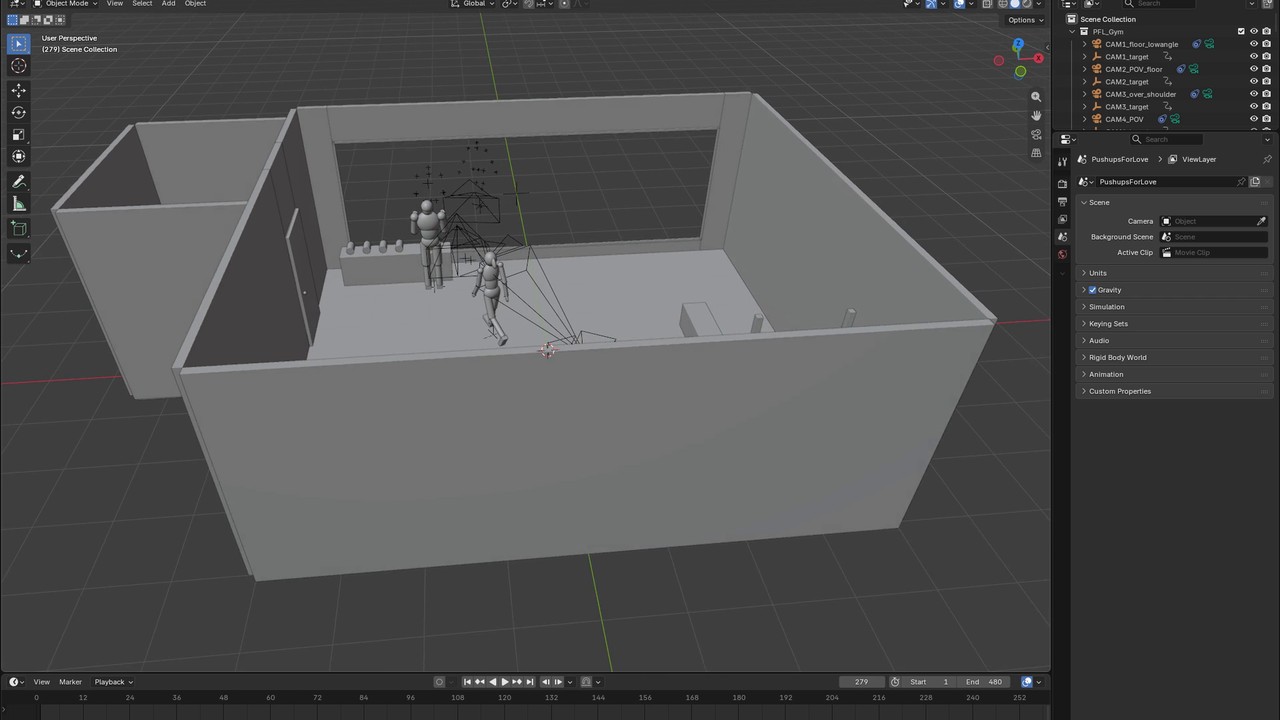
Here's the part that surprises people: I didn't model or animate any of it by hand. I told 3D-Agent what happens (a girl doing three pushups, her crush walks into the gym, she walks up behind him, her reflection in the mirror) and 3D-Agent built it in Blender.
"I don't model or animate any of this by hand. I just tell 3D-Agent what happens and it builds it in Blender for me."
That's Blender AI animation the way I use it: I describe the action and the agent does the blocking. The result was four shots of 4 to 6 seconds each.
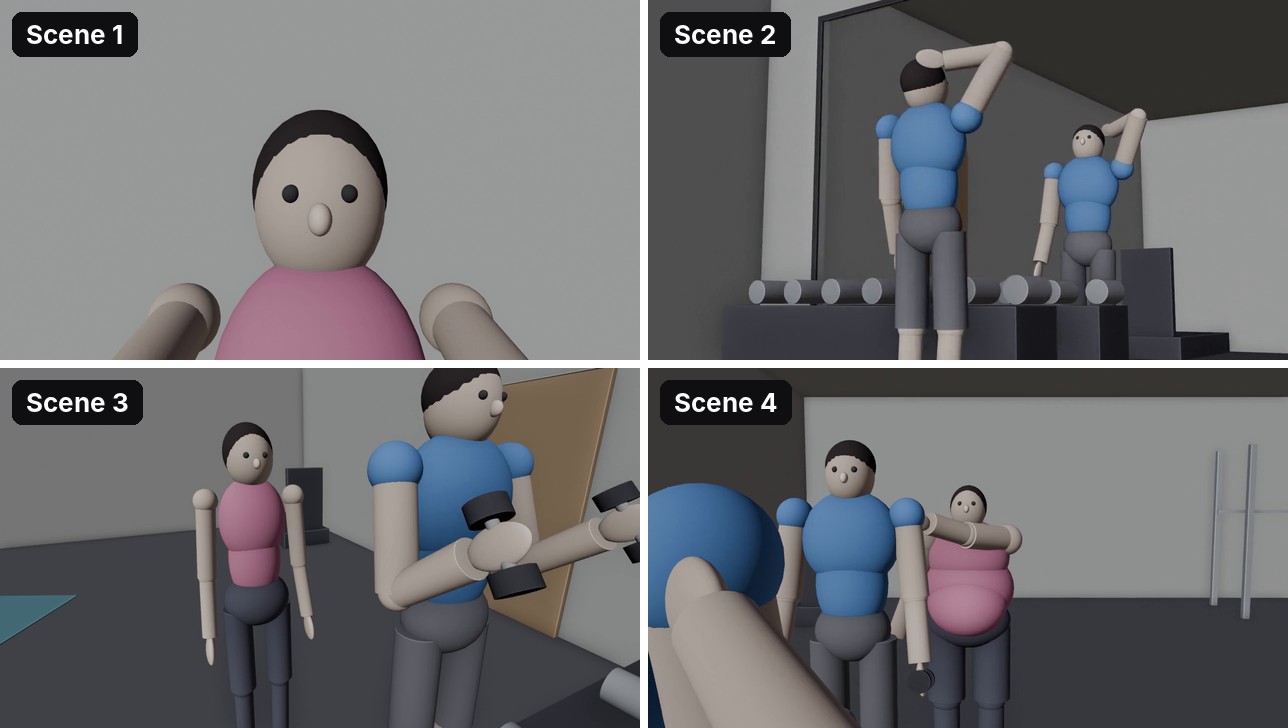
Why make a blockout if the AI paints over it anyway? Because it shows the video model exactly where things are and how they move. Words are vague. A grey figure walking across a grey room isn't.
The blockout prompts
Send these to 3D-Agent in a chat with Blender connected: first the set, then one prompt per shot. Keep it grey and simple. Swap the highlighted words for your own story.
Prompt · Blockout · the set (template)
Build a simple blockout in Blender for a short film. Grey untextured shapes only, nothing detailed.

The set: a boutique gym, about 10 m x 7 m. Add the walls, a long wall mirror on the right wall, an entrance door on the left wall, a low dumbbell rack along the mirror, a light green exercise mat on the floor, a few machines at the back.

The cast: simple mannequin stand-ins at real human scale, each with a different flat color so I can tell them apart: a woman in pink and a man in blue.

Scene length: 4 shots, 4 to 6 seconds each, 24 fps. Put each shot on its own frame range and name the cameras CAM_shot1 to CAM_shot4.
Prompt · Blockout · one shot's action (template)
Shot 1, frames 1-96 (4 seconds). Animate the stand-ins:
0-1.3 s: the woman does a pushup on the mat.
1.3-2.7 s: a second pushup, a little slower.
2.7-4 s: a third pushup, ending at the top with straight arms.
Keep the motion simple and readable. No hand or face detail needed.
Prompt · Blockout · the four shots from the film
Shot 1 (4 s): the woman does three pushups on the mat.
Shot 2 (6 s): the man pushes the door open, walks across the gym to the dumbbell rack, stops facing the mirror and slides a hand back through his hair. He never touches the dumbbells.
Shot 3 (4 s): the man does slow hammer curls facing the mirror. The woman hesitates by the mat, then walks slowly up behind him and stops right behind him, hands together.
Shot 4 (6 s): the woman stands behind him; her right hand slowly rises toward his shoulder and stops just before touching it, then sinks down. He keeps curling and never notices her.
Step 2: Make the AI follow your camera
Every AI video creator knows this one. You ask for a camera move and you get something completely different. On my first try I asked for a push-in and got a wide shot instead.
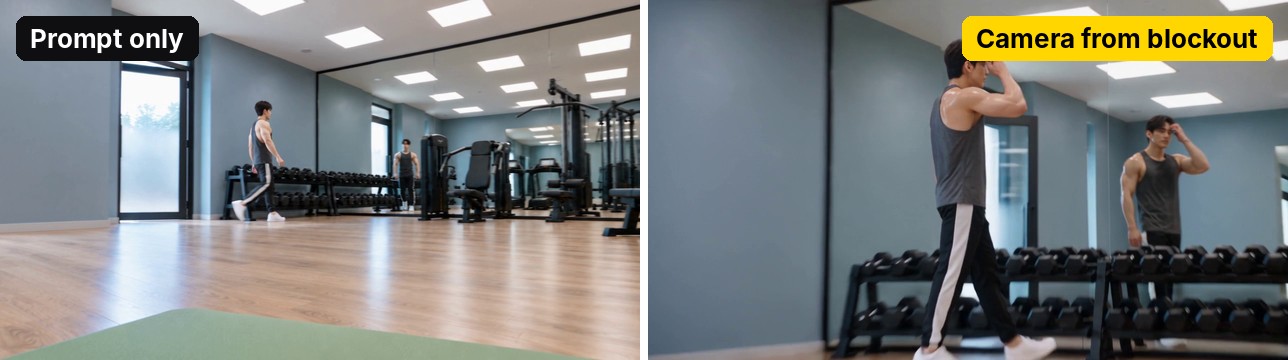
The fix: put the camera in the Blender blockout.
"I put the camera in the blockout and the result just follows it."
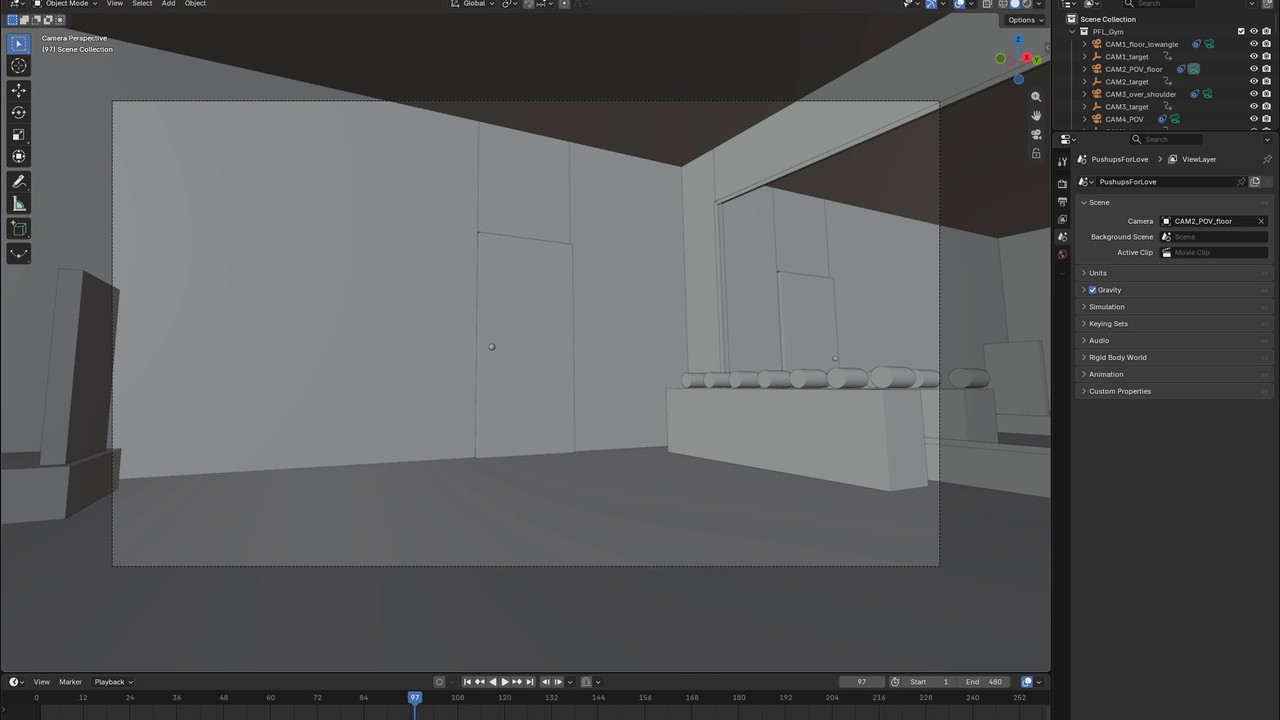
Each of the four shots follows its own planned camera move:
- Shot 1: starts on her eyes and moves back along the floor while she does her pushups.
- Shot 2: moves in to his face in the mirror.
- Shot 3: a wide reverse angle from the other side of the room.
- Shot 4: goes up with her hand, then zooms into her eyes in the mirror.
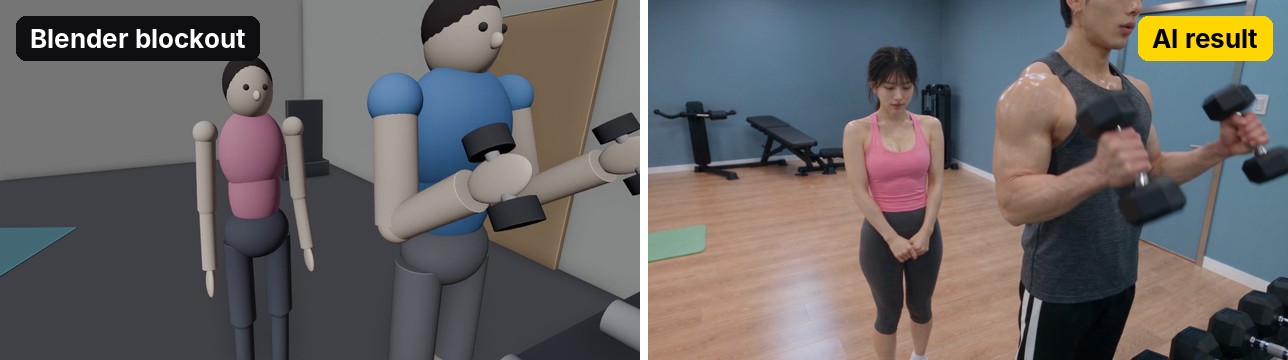
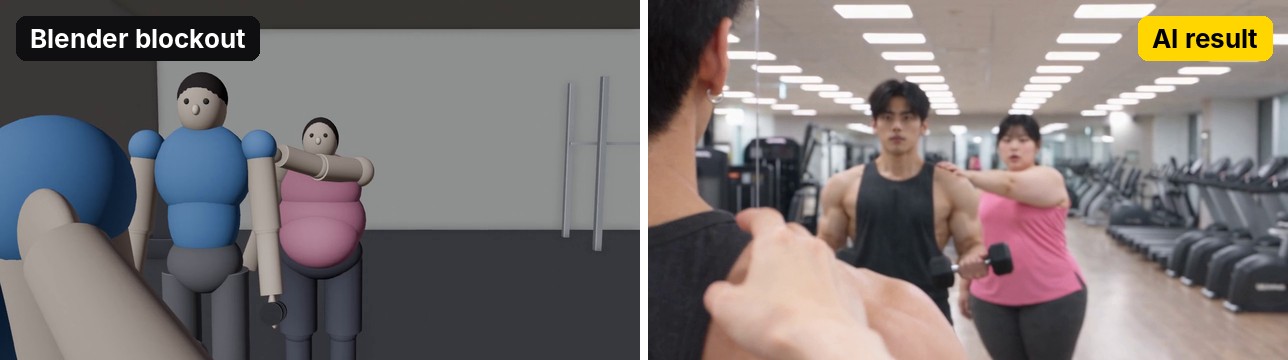
The camera is also what makes the loop. The last shot ends on the same eyes the first shot starts on. Plan that in the blockout and the loop is built in before you generate a single frame.
The camera prompts
Animate each shot's camera, then render the shot through it. That render becomes the motion reference in step 3.
Prompt · Camera · one shot (template)
Animate CAM_shot1 for frames 1-96:
Position: on the floor under her face, pointing straight up.
Start: an extreme close-up of her eyes, long lens.
Move: zoom out to a 24 mm wide shot by 1 s, then hold still.
Keep the move smooth, no shake. Make CAM_shot1 the active camera for these frames.
Prompt · Render the motion reference (template)
Render a viewport preview of shot 1 through CAM_shot1, frames 1-96, 1280x720, solid grey shading, and save it as motion_ref_shot1.mp4.
Prompt · Camera · every shot from the film
Shot 1: camera flat on the mat, pointing straight up under her face. Opens on an extreme close-up of her eyes, zooms out to 24 mm by 1 s, then locked.
Shot 2: her point of view from the mat, 40 cm above the floor, looking slightly up. Turns a little to follow him. 22 mm until 2.4 s, slow zoom to 32 mm by 4.8 s, then a smooth push to about 80 mm on his face in the mirror by 5.6 s, held.
Shot 3: reverse angle from the mirror side, at his right, chest high, looking back across the gym. 19 mm, very wide, no zoom.
Shot 4: her point of view standing behind him. Tilts up with her rising hand, then finds the mirror and zooms from 24 mm to a long lens on her reflection's eyes by 5.5 s.
Step 3: Prompt conditioning
Prompt conditioning is everything you give the model besides the words: pictures of the people, a first frame for every shot, and the blockout as a motion reference. Then the words themselves, with time codes.
The people
I made pictures of the people in 3D-Agent: the girl, how she sees herself in the mirror, and her crush.

Each one is a character sheet made in 3D-Agent's Image mode. Save them with clear names, like her_outfit and his_outfit.
Prompt · Character sheet (template)
Character sheet of a young woman, slim, pale skin, black hair in a low ponytail with short bangs, a tiny mole below her right eye. Outfit: bubblegum-pink racerback top, dark grey knee-length leggings, white sneakers.
Three panels side by side on a flat neutral grey background, same person in all three: full body from the front, full body from the back, and a close-up of her face.
Neutral pose, arms relaxed, even soft light, no shadows on the background. Photoreal. No text, no logos.
A first frame for every shot
Every shot gets its own first frame. For shot 1, I turned her picture into an extreme close-up of her eyes: "obsessed and kind of traumatized, but funny, not horror." The last frame of the film is the same eyes in the mirror, so the loop is invisible.
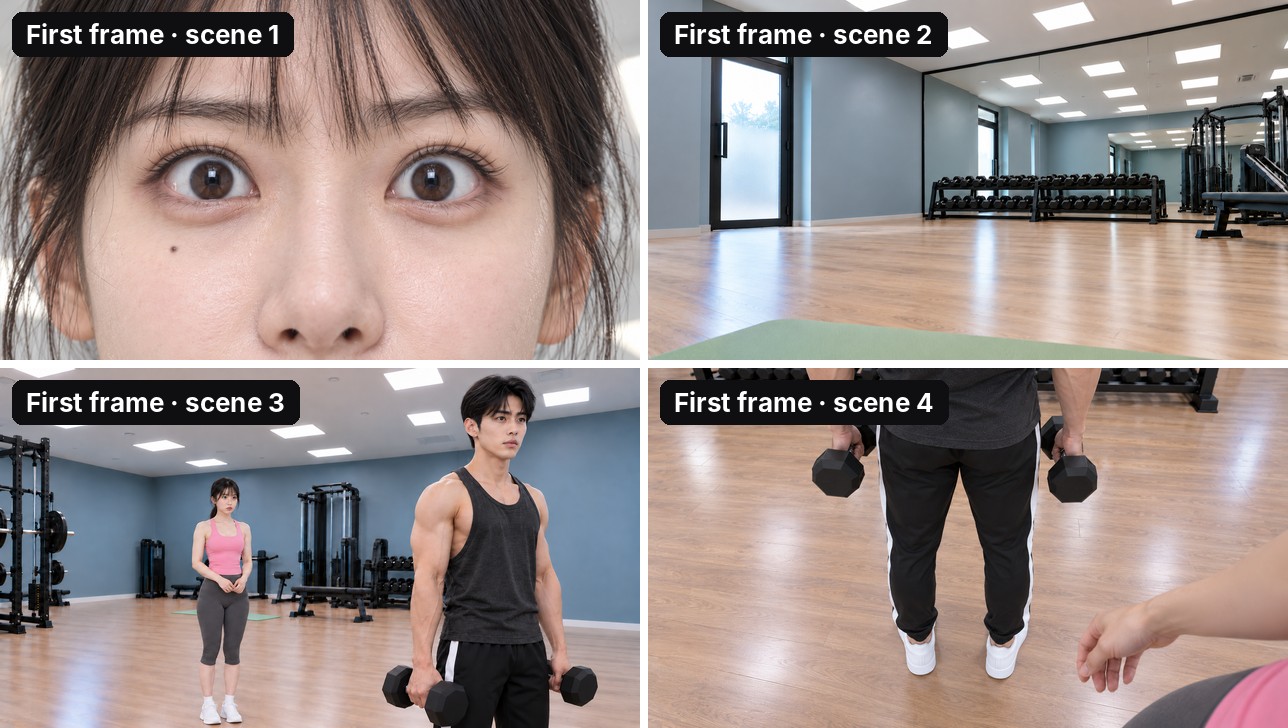
Attach the character sheet, the face and the empty room, then describe the frame:
Prompt · First frame of a shot (template)
Extreme close-up photo of the young woman in the attached references, only her eyes. The camera is on the floor directly below her face, pointing straight up; she holds the top of a pushup and stares down into the lens. The frame runs from her bangs at the top edge to just below the tip of her nose; both eyes centered.
Expression: obsessed and traumatized: eyes wide and unblinking, a fixed intense stare into the lens, brows slightly raised and pinched. Comedic, not horror.
Her look, 100% match to the references: pale skin with a light sweaty sheen, black hair with short bangs, tiny mole below her right eye.
Behind her, out of focus: a white ceiling with a soft square light panel. Same light as the room. Photoreal, real skin texture. No text, no logos.
The last shot ends on the same eyes, this time seen in the mirror:
Prompt · Last frame for the loop, from the film
Extreme close-up photo of a reflection in a gym wall mirror: only the eyes of the young woman in the attached references. She stares straight into the mirror, so her reflection stares into the lens. Same framing as the first frame: from her bangs to just below the tip of her nose, both eyes centered.
Expression: obsessed and traumatized, eyes wide and unblinking. Comedic, not horror.
Because this is a mirror reflection, the mole appears on the right side of the image.
Behind her, out of focus: a white gym wall. Photoreal, real skin texture. No text, no logos.
Why AI faces look fake (and how to get realistic AI video)
My first try looked like plastic. The reason is simple: the video copies the first picture you give it.
"Fake face in, fake face out."
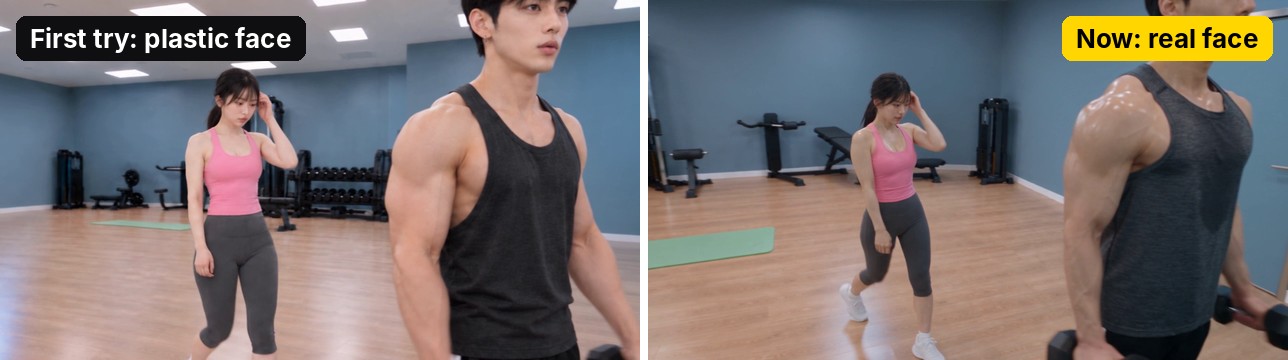
Shot 1 came out looking real, so I took one frame from that video and used it as her face reference. I did the same for him. After that, the faces looked real.
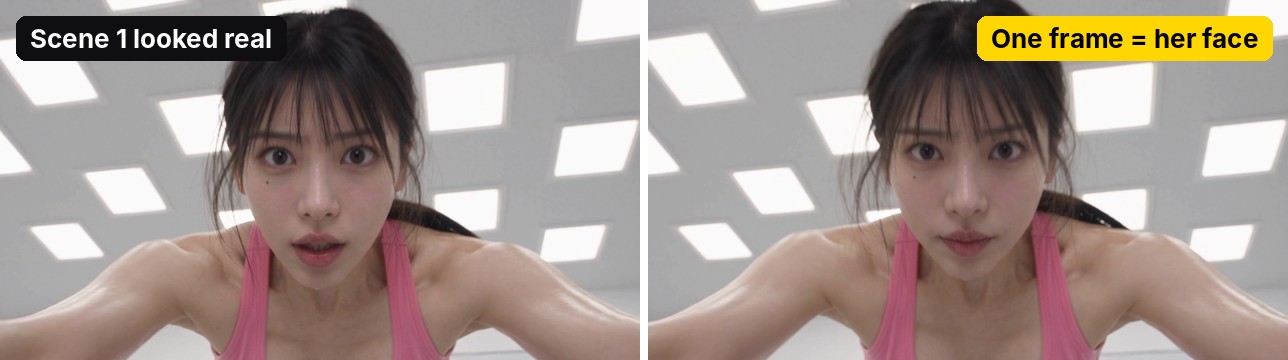
If you want realistic AI video, this is the lesson to keep: the picture that goes in first sets the look. Start from a face that already looks real.
No real-looking shot yet? Make a short, realistic test clip of each person in Video mode, pick the most real-looking frame, and save it as her_face or his_face.
Prompt · Real-face test clip (template)
1 continuous shot, 4 seconds, real-time, no cuts. Shot on a real cinema camera, documentary realism, slight handheld micro-movement, fine film grain, natural imperfect light. Real skin with visible pores, light sweat, flyaway hairs. No CGI, no plastic or airbrushed look, no beauty filter. No on-screen text or logos.

@his_outfit = his face and identity: 100% the same man.

FRAMING: medium close-up from the chest up, facing the camera, in a bright boutique gym with blue-grey walls. 50 mm lens, shallow depth of field.

HIS LOOK: black two-block haircut with a soft fringe, small silver hoop in his right ear, lean athletic build, dark grey tank top.

ACTION: he finishes a set, breathes out, and gives his reflection a confident look, lips closed, no smile. Small natural head movement, natural blinking.

AUDIO: room tone, his breathing. No words, no music.
If a still picture still looks like a render, run a realism pass on it:
Prompt · Realism pass
Edit the attached image into a real, unedited photograph. Keep the exact composition, camera angle, framing, people, poses, outfits and room layout. Natural, slightly uneven light with soft falloff, real materials with small imperfections, fine film grain, slight lens softness at the edges. Real skin texture with visible pores, a light natural sweat sheen, flyaway hairs. Faces and identity stay 100% the same. No plastic, airbrushed or CGI look. No text, no logos.
Upload order and clear file names
Order matters. Upload the faces first, then the clothes, then the empty room.
Give every file a clear name, like her_face or empty_room. If they're just "image 1, image 2, image 3", the model gets confused. With clear names, every line of the prompt can point at exactly the picture it means.
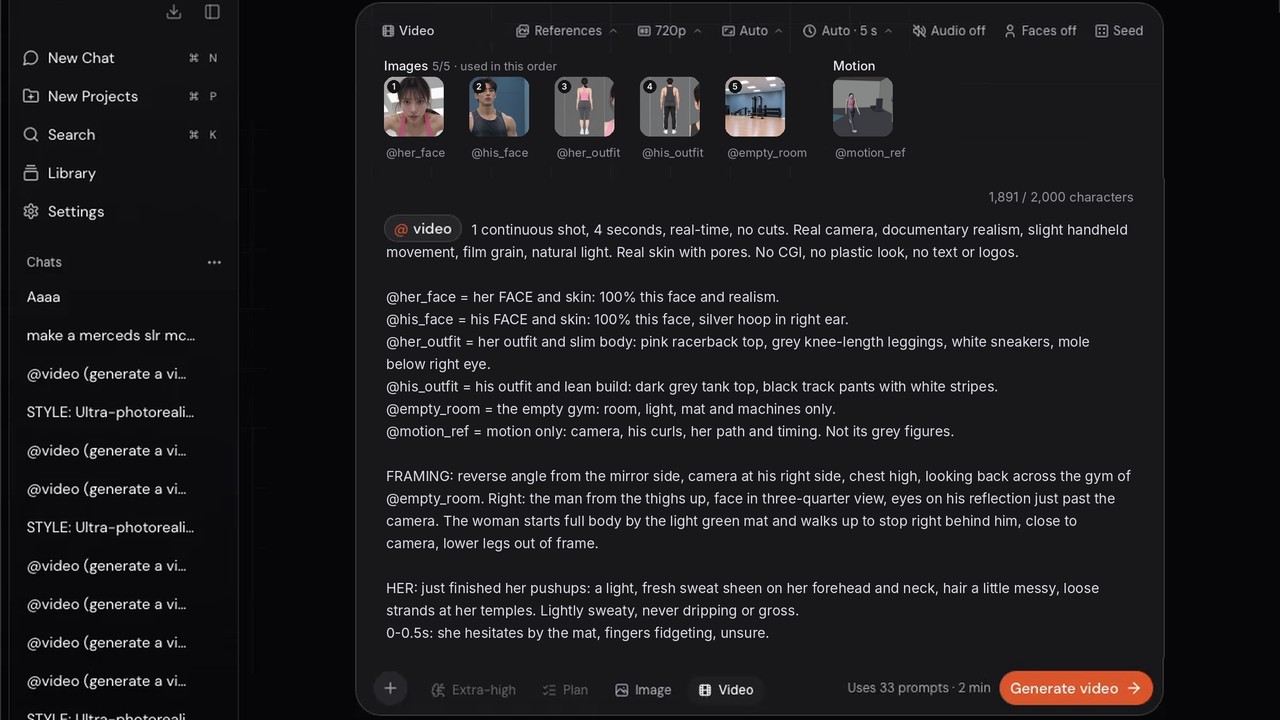
The empty room is one more picture, saved as empty_room:
Prompt · Empty room (template)
Photo of the empty boutique gym from the eye level of someone holding the top of a pushup on the mat: camera about 40 cm above the floor, looking straight ahead and slightly up. Center-left: the entrance door, frosted glass, closed. Right: the long wall mirror and a low black dumbbell rack along it, machines further back. The mirror reflects only the empty room. Nobody in the room.
Wide 22 mm lens, low angle. Bright, slightly cool overhead light from square ceiling panels, soft and even, no hard shadows. Photoreal, fine grain. No people, no text, no logos.
The blockout goes in as motion only
The blockout goes in as a motion reference, with a clear instruction:
"Motion only. Copy the camera, copy the timing, but never the grey figures."
Time-coded prompts
The prompt has time codes, so each beat of the action lands at a set moment. In Video mode, add the pictures (faces, outfits, then the empty room or the shot's first frame), put the blockout render in the Motion slot, and paste the prompt. The structure: look and realism, what each picture is for, framing, action with time codes, lens, audio, and the "never" rules.
Prompt · Video prompt (template)
1 continuous shot, 4 seconds, real-time, no cuts. Real camera, documentary realism, slight handheld movement, film grain, natural light. Real skin with pores. No CGI, no plastic look, no text or logos.

@her_face = her FACE and skin: 100% this face and realism.
@his_face = his FACE and skin: 100% this face.
@her_outfit = her outfit and body: pink racerback top, grey leggings, white sneakers.
@his_outfit = his outfit and build: dark grey tank top, black track pants.
@empty_room = the room: room, light, mat and machines only.
@motion_ref = motion only: camera, his moves, her path and timing. Not its grey figures.

FRAMING: where the camera is, what is left/right, who is in frame and how much of them.

ACTION:
0-0.5s: what happens first.
0.5-3.2s: the main action, with how it feels.
3.2-4s: how the shot ends.
What the other person does the whole time.

LENS: 19 mm very wide, no zoom.
AUDIO: room tone, steps, breathing. No words.

Same woman (@her_face + @her_outfit), same man (@his_face + @his_outfit) throughout. No morphing.
If you have a first frame for the shot, add it first and write @first_frame = opening frame, open on it exactly. For a shot that must end on an exact picture, like the loop, add @last_frame = closing frame, end on it exactly.
Here's the full 3D-Agent prompt for shot 3, the walk, with the time codes highlighted:
Prompt · Shot 3 · the walk
1 continuous shot, 4 seconds, real-time, no cuts. Real camera, documentary realism, slight handheld movement, film grain, natural light. Real skin with pores. No CGI, no plastic look, no text or logos.

@her_face = her FACE and skin: 100% this face and realism.
@his_face = his FACE and skin: 100% this face, silver hoop in right ear.
@her_outfit = her outfit and slim body: pink racerback top, grey knee-length leggings, white sneakers, mole below right eye.
@his_outfit = his outfit and lean build: dark grey tank top, black track pants with white stripes.
@empty_room = the empty gym: room, light, mat and machines only.
@motion_ref = motion only: camera, his curls, her path and timing. Not its grey figures.

FRAMING: reverse angle from the mirror side, camera at his right side, chest high, looking back across the gym of @empty_room. Right: the man from the thighs up, face in three-quarter view, eyes on his reflection just past the camera. The woman starts full body by the light green mat and walks up to stop right behind him, close to camera, lower legs out of frame.

HER: just finished her pushups: a light, fresh sweat sheen on her forehead and neck, hair a little messy, loose strands at her temples. Lightly sweaty, never dripping or gross.
0-0.5s: she hesitates by the mat, fingers fidgeting, unsure.
0.5-3.2s: she walks toward him at a slow, moderate pace, shy and a little insecure: head slightly lowered, quick glances at him, tucking a strand behind her ear, small careful steps. Ponytail sways, loose strands move, weight shifts foot to foot.
3.2-4s: she stops right behind him, love-struck but insecure, hands together.
He does slow hammer curls, admiring himself, never noticing her.

LENS: 19mm very wide, no zoom.
AUDIO: gym tone, soft steps, his exhales. No words.

Same woman (@her_face + @her_outfit), same man (@his_face + @his_outfit) throughout. No morphing.
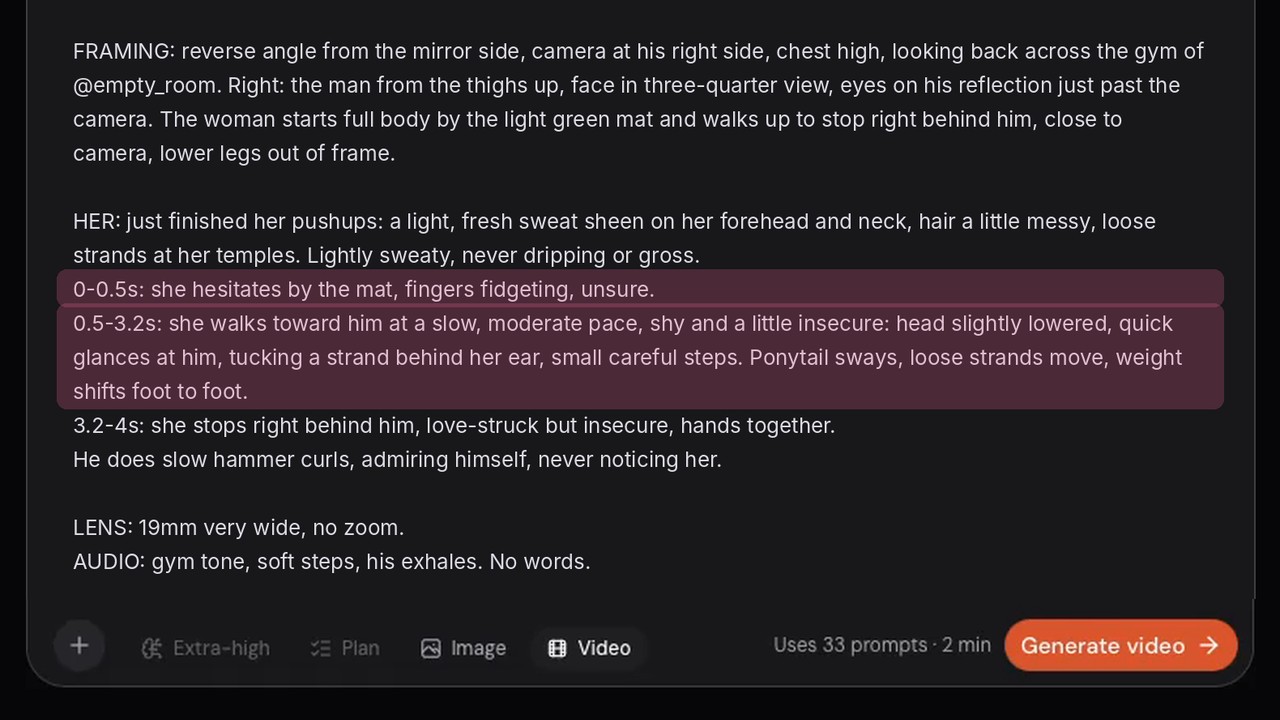
Look at what's in there besides the time codes. Every reference file is named and gets one job. @motion_ref is told it's motion only. And the first lines ask for real skin with pores and no plastic look.
Then you iterate
In one take, he grabbed dumbbells from a rack that wasn't supposed to be there. The fix was one changed line in the prompt plus one changed move in the blockout: just a hand through his hair. The next take worked.
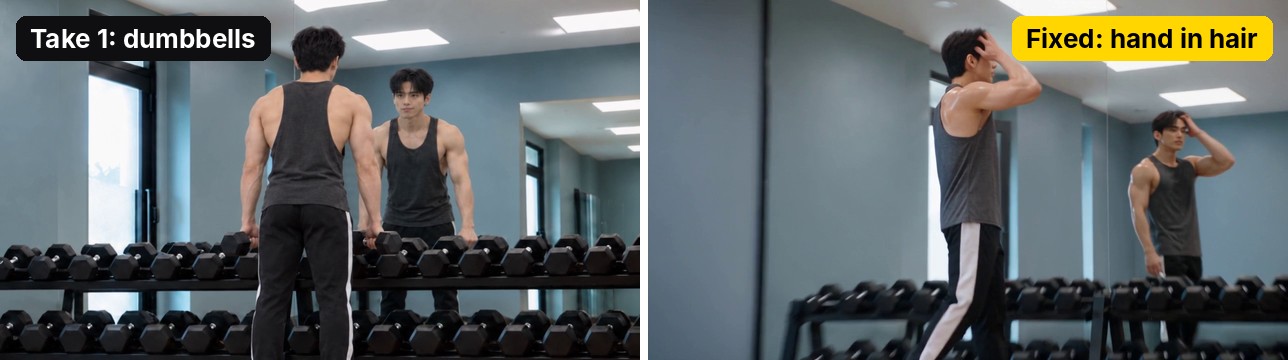
When a take goes wrong, you don't start over. You change the line and the move that caused it.
Prompt · The dumbbell fix, before and after
Before:  4.1-6s: he picks up two dumbbells.
After:   4.1-6s: at the rack he stops and faces the mirror. He does not touch the dumbbells. Looking at his reflection, he slowly slides his fingers back through his hair, charming and flirty.
Added:   Hands empty: never holds a dumbbell.
A few "never" lines worth keeping at the end of a prompt:
Prompt · Never lines (template)
Same woman (@her_face + @her_outfit) throughout. No morphing.
Motion reference only: never copy its grey figures, colors or room.
Hands empty: never holds a dumbbell.
The mirror shows only him; his reflection is exact.
Comedic, never horror.
No on-screen text or logos.
Step 4: Final polish and a perfect loop
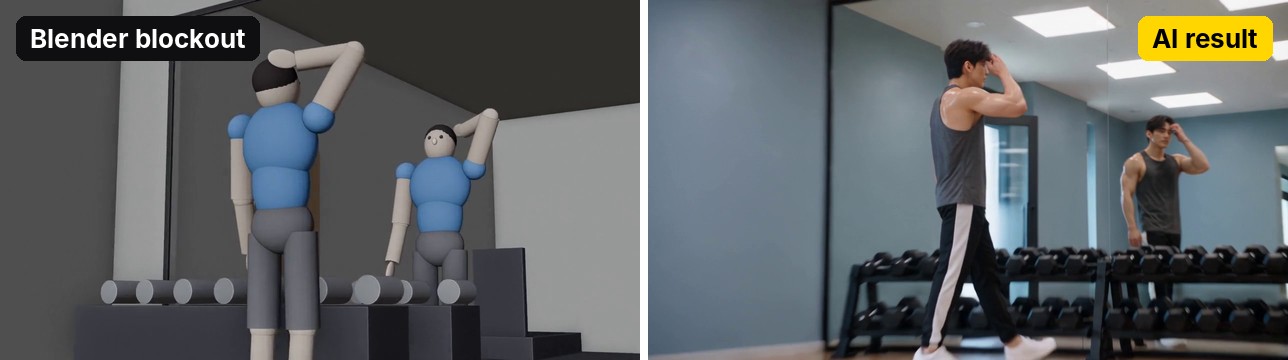
First, compare each blockout with its result side by side. The camera and the timing should match. Here, they do.
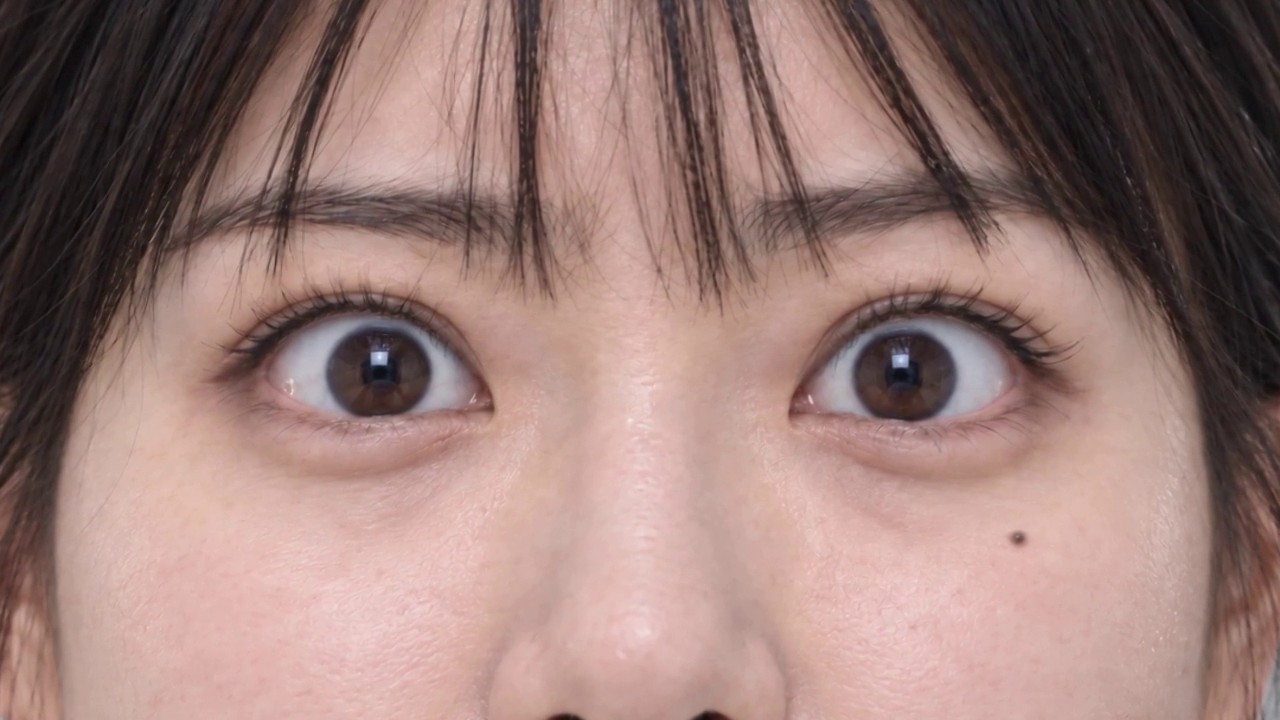
Then check the first and last frame of every shot, especially where the loop connects. The last frame of shot 4 and the first frame of shot 1 are the same eyes.
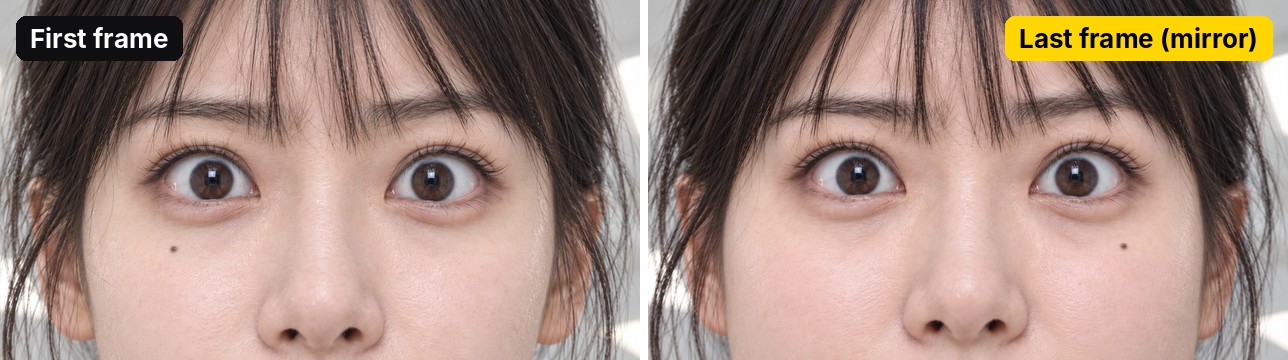
Finally, join the four clips and play them on loop. Watch it a few times and try to find the cut. If you can't, you're done.
3D-Agent can do the joining for you in Blender's video editor:
Prompt · Join the shots and loop (template)
In Blender's video editor, add these clips in order: shot1.mp4, shot2.mp4, shot3.mp4, shot4.mp4. Trim the last 3 frames of shot2. Keep each clip's own audio. Export the whole sequence as film_loop.mp4, 1280x720.
Bonus tip: always check the last frames
Always check the last frames of every clip. Sometimes the model pastes one of the reference images right at the end. If it does, trim it.
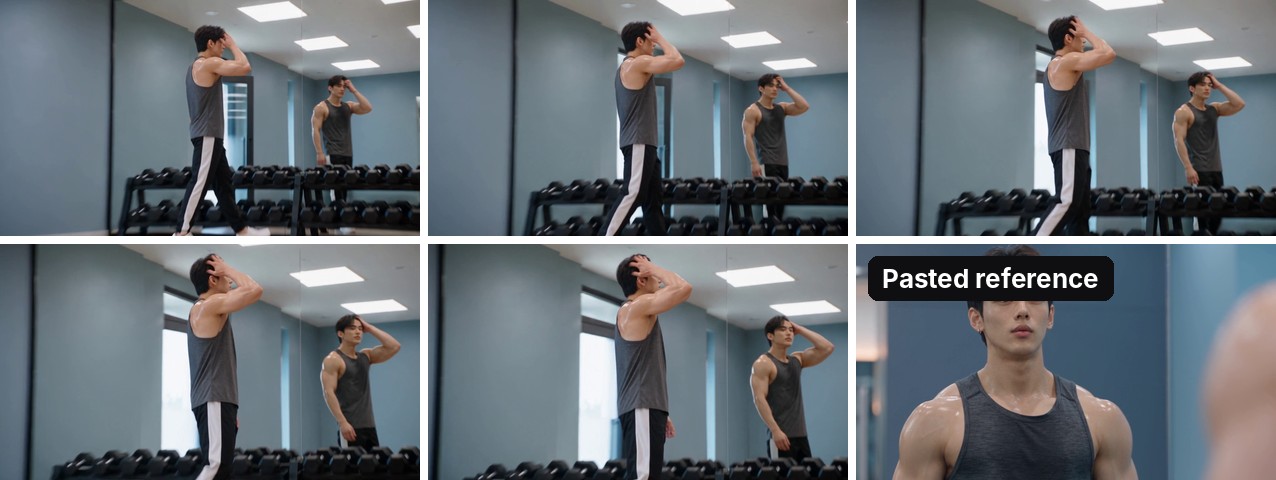
It's easy to miss at full speed, so step through the end of each clip frame by frame before you join them.
The AI filmmaking tools I used
- 3D-Agent, an AI tool for Blender. It built the blockout from plain-language descriptions, made the character pictures and the first frames, and generated the video.
- Blender, the free 3D software where the blockout and the cameras live.
- Seedance 2.5, the video model I used inside 3D-Agent.
Everything, from the grey shapes to the final clips, happened in one place: the 3D-Agent Blender AI plugin. If you're new to the idea of an agent driving Blender, start with the Blender AI guide.
That's the whole AI video workflow: block it out, plan the camera, give the model real faces and clear names, then check every frame where the clips meet. Whether you call yourself an AI filmmaker or you're a Blender user trying AI video for the first time, it's the same four steps. And if you've been looking for an AI movie maker that lets you direct the camera, this is the setup I'd start with.
Make your own AI short film with 3D-Agent
Block it out in Blender, then let the AI paint it. Everything you create with 3D-Agent is yours to use commercially. And tell me in the comments: what story should I make next?
Questions
Does Blender have AI?
Blender doesn't ship generative AI tools. Its render denoiser uses machine learning, but Blender won't build a scene or make a video for you. Tools like 3D-Agent add AI on top of Blender as a plugin.
Is Blender AI?
No. Blender is free 3D software. AI tools like 3D-Agent can drive it, for example by building a scene blockout from a plain-language description.
How do I make an AI movie that doesn't look fake?
Start from a face reference that already looks real. The video copies the first picture you give it: fake face in, fake face out. In this film, one frame from a shot that came out looking real became the face reference.
How long should each AI shot be?
In this film, each shot is 4 to 6 seconds long. Four shots make the 18-second loop.
How do I control the camera in AI video?
Animate the camera in a Blender blockout and give the blockout to the video model as a motion reference, with a clear instruction: copy the camera and the timing, never the grey figures.
Comments
Questions, results, or the story you'd film next.